

Create a Xero invoice from accepted work.
Turn an agreed deposit, milestone or service period into a draft invoice. Your team can review it in Xero and check what the client still owes from the accepted proposal.
Open accounting settings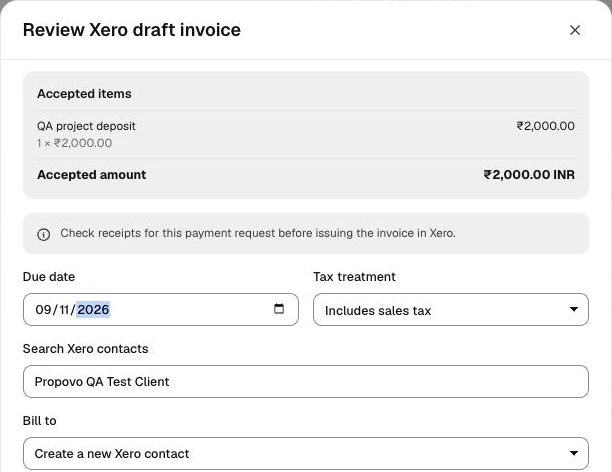
What you can do with Propovo and Xero
Invoice the agreed amount
Choose a billable item from the version the client accepted. For recurring work, select the month or year you are billing.
Review the draft in Xero
Confirm the contact, currency, due date and tax treatment in Propovo. Open the resulting draft in Xero to approve and send it.
Check the balance
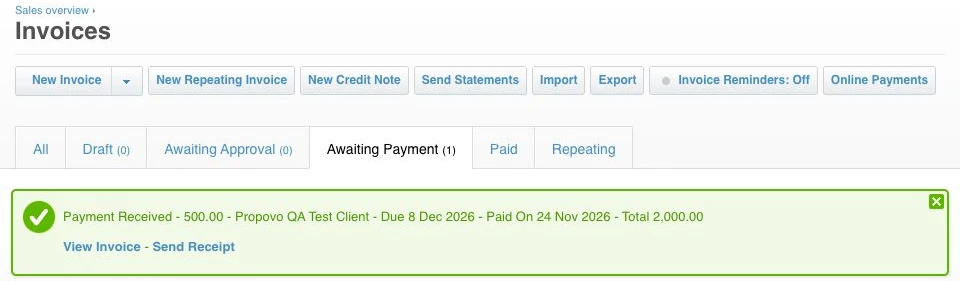
Open the accepted proposal to see the linked invoice number, status, recorded payments and balance. Select Refresh status for the latest figures.
How a team uses it
In this example, a client agreed to a ₹2,000 deposit. The team created the draft from the accepted proposal, approved it in Xero and recorded a ₹500 payment. After a refresh, Propovo showed the same invoice as partially paid with ₹1,500 outstanding.
What moves where
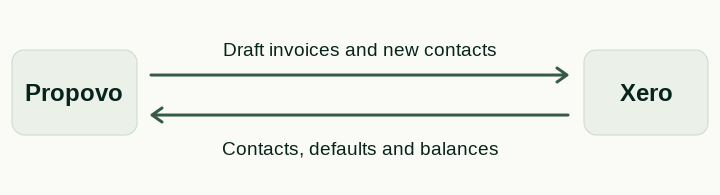
| Data | Direction | When |
|---|---|---|
| Organisation, revenue accounts and sales tax rates | Xero → Propovo | When an admin connects the workspace or opens accounting settings. |
| Contacts | Xero → Propovo | When you search for a customer by name or email in the invoice review. |
| Contact name and optional email | Propovo → Xero | Only when you choose to create a new contact and confirm the draft. |
| Draft sales invoice | Propovo → Xero | When you confirm the billing item, contact, line amounts, tax treatment and due date. Xero also receives a link to the accepted version. |
| Invoice number, status, payments, credits and balance | Xero → Propovo | When you open the accepted version, Propovo refreshes recent links as needed. Select Refresh status to check an individual invoice. |
Set it up
Open your workspace’s accounting settings
During your Premium trial or subscription, sign in as a workspace owner or admin. Open Settings, choose Integrations, then Accounting. Select Connect on the Xero card.
Authorise your Xero organisation
Xero opens its own consent screen. Sign in, select one organisation and allow Propovo access. When you return to Propovo, open Xero settings and confirm the organisation for this workspace.
Save your invoice defaults
Choose an active Xero revenue account and an active sales tax rate that applies to revenue. Select Save defaults. Your accountant can help you choose the right pair.
Create your first draft invoice
Open the accepted proposal version. Under Xero invoices, select Create draft invoice, choose the item to bill and review its lines. Find the existing Xero contact or explicitly create one. Confirm the due date and tax treatment, then create the draft.
Good to know
- Creating a draft is a manual action. Approvals, client delivery, recording payments, processing fees and reconciliation take place in Xero or with your payment provider.
- Each workspace connects to one Xero organisation. Review external payment receipts before invoicing a payment request, and account for any deposit when billing the remainder.
Xero integration, frequently asked
Why can’t I see Create draft invoice?
Check that you are an owner or admin of the connected workspace and can edit the document. In Xero settings, save the organisation, sales account and sales tax rate. Open the version the client accepted. It must have an eligible amount to bill. If the amount already has an invoice, use its existing link.
Why is my account, tax rate or contact missing?
Propovo lists active revenue accounts and active tax rates that Xero allows on revenue. Contact search uses active Xero contacts in the connected organisation. Check the organisation and account settings in Xero, then reopen the settings or search again.
What if I see Checking in Xero or a stale balance?
Select Check in Xero on the invoice row to verify whether Xero created the draft. Use Open in Xero to check the reference before trying again. For a linked invoice, look at its last update time and use Refresh status after recording a payment or credit in Xero.
Where do I reconcile a payment or its processing fee?
Record and reconcile the receipt and any processor fee in Xero using your usual payment workflow. Propovo reads the resulting invoice balance and shows partial payments. A receipt recorded elsewhere needs to be reconciled in Xero before it appears here.
How do I disconnect or reconnect?
In Settings, open Integrations, select Accounting and choose Disconnect Xero. You can also remove Propovo under Connected apps in Xero. To resume, choose Connect or Reconnect in Propovo, authorise the original organisation and confirm your invoice defaults. Previously created invoices stay in Xero.
Which Propovo plan includes Xero?
Xero invoicing is included during the 14-day Premium trial and on paid Premium subscriptions. A workspace owner or admin manages the connection. If the trial or paid entitlement ends, Propovo removes the Xero connection. You can reconnect after upgrading.
Put it to work in your next proposal.
Create your account and connect it from Settings. Every integration is in the free 14-day trial and in Premium.